Bitzaro Payroll User Guide
Pay your global team in USDT — with the controls, records and payslips of a traditional payroll platform. This guide walks every flow with real product screens.
How Bitzaro Payroll works
Every payroll follows one auditable lifecycle. HR prepares it, a Director approves it, Finance pays it — and the platform settles on-chain, generates payslips, and emails your team automatically.
| Who | Does what |
|---|---|
| HR Admin | Maintains employees, builds the payroll draft, submits it for approval |
| Director | Reviews amounts and recipients, approves or rejects with a reason. You can have more than one — any of them can approve, so payroll never waits on one person being available |
| Finance | Funds and pays exactly what the Director approved — cannot create or edit payrolls, amounts or recipients |
| Owner | Everything above except approvals — creates, pays, manages billing/team/company; approving stays exclusively with the Director |
Create your account
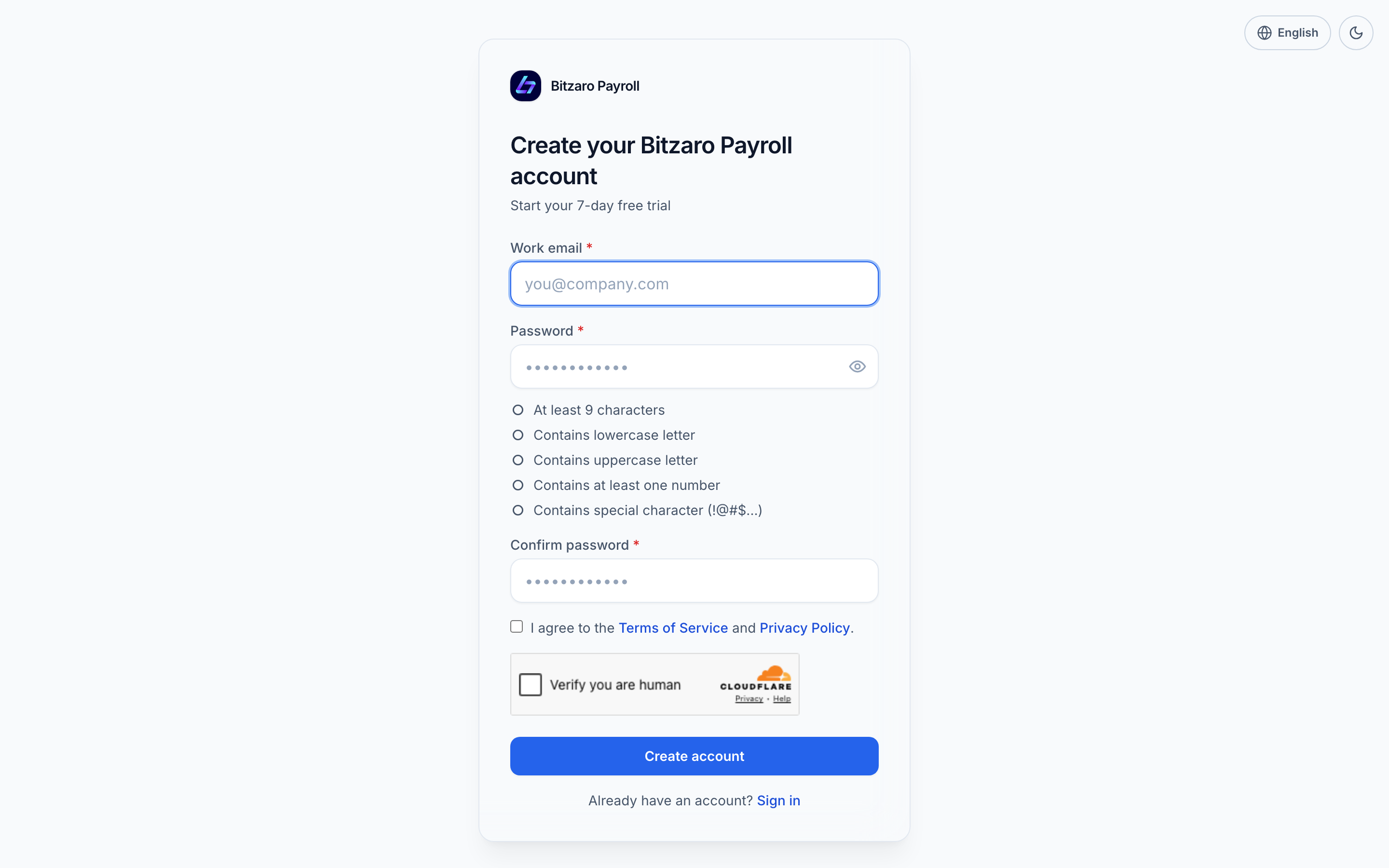
- Sign up with your work emailUse a password of at least 9 characters — the checklist under the field shows exactly what's still missing as you type.
payroll.bitzaro.com/signup
 Screenshot pending — run capture.mjs
Create your account — live password requirements, human verification, and legal links. - Verify and sign inConfirm your email, then sign in. You can add a passkey right after — sensitive actions (like paying) will ask for it.
payroll.bitzaro.com/login
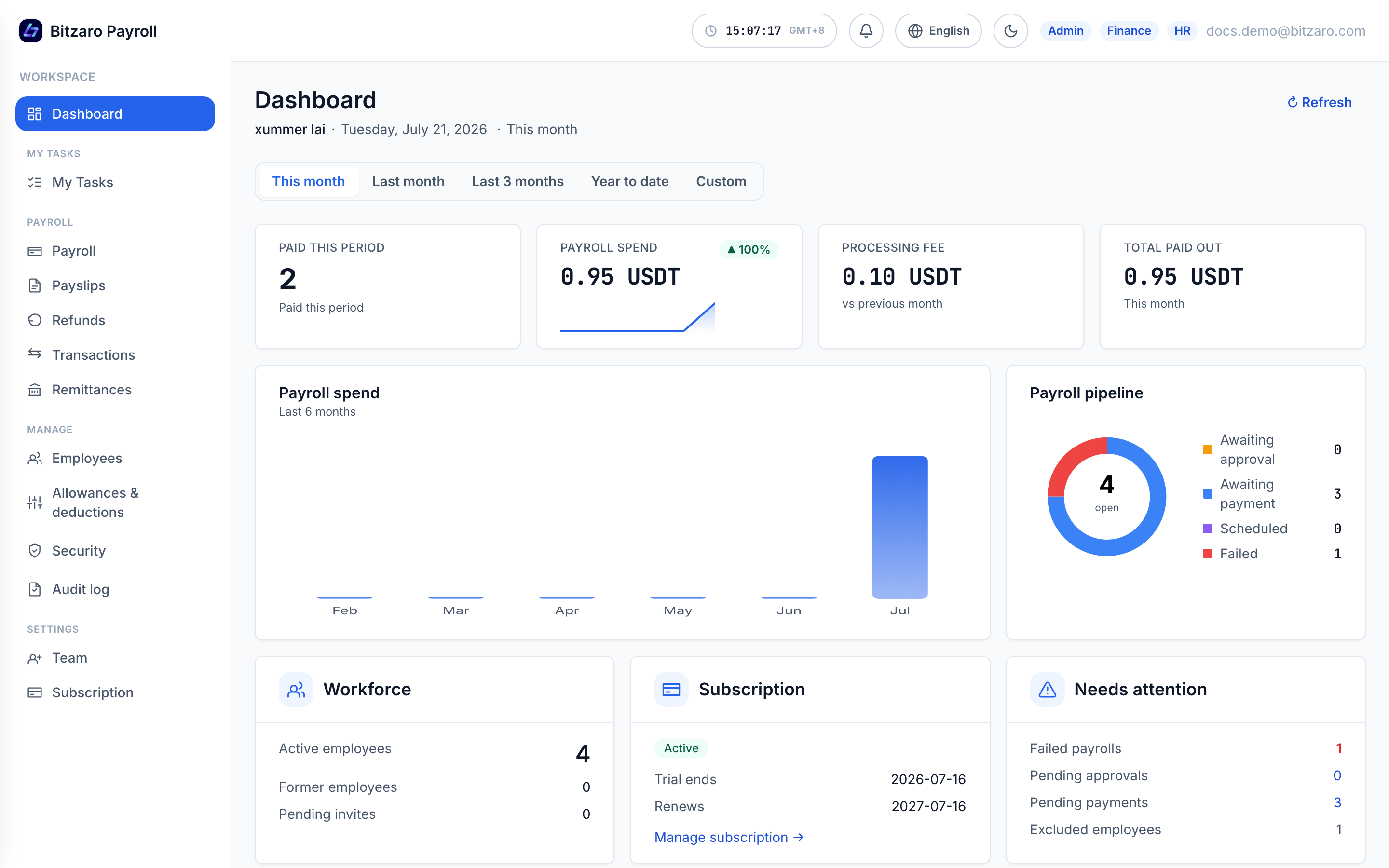 Screenshot pending — run capture.mjs
Sign in with email + password, or one tap with a passkey. - Complete company onboardingEnter your legal name, country, address, company registration no. and employer tax no. (they print on payslips and year-end statements), industry and logo. A live payslip preview updates beside the form so you see exactly what employees will receive before you save.
- Set up your passkey (recommended, skippable)Passkeys work with Windows Hello (PIN or fingerprint), Face ID / Touch ID, security keys — or your phone via QR code. One tap enrolls it; from then on, paying, refunds and other sensitive actions confirm with a touch. On a locked-down machine, choose Set up later: sensitive actions fall back to your password, the app keeps a reminder, and you can enroll any time in Security.
/passkey-setup
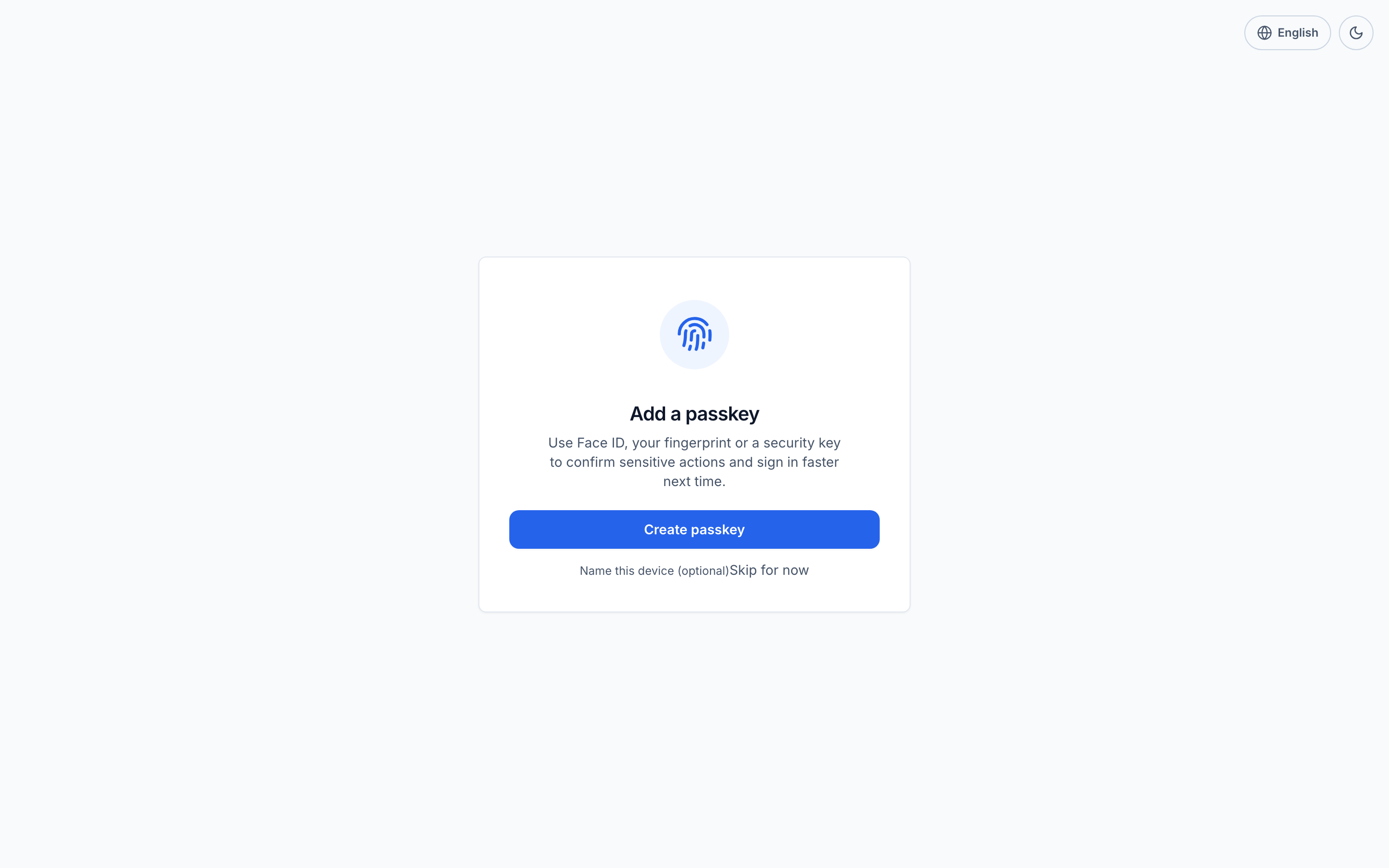 Screenshot pending — run capture.mjs
Enroll a passkey — used to confirm sensitive actions. - Invite your DirectorApprovals require a second person. The wizard asks you to invite a Director (and optionally Finance/HR teammates) before your first payroll.
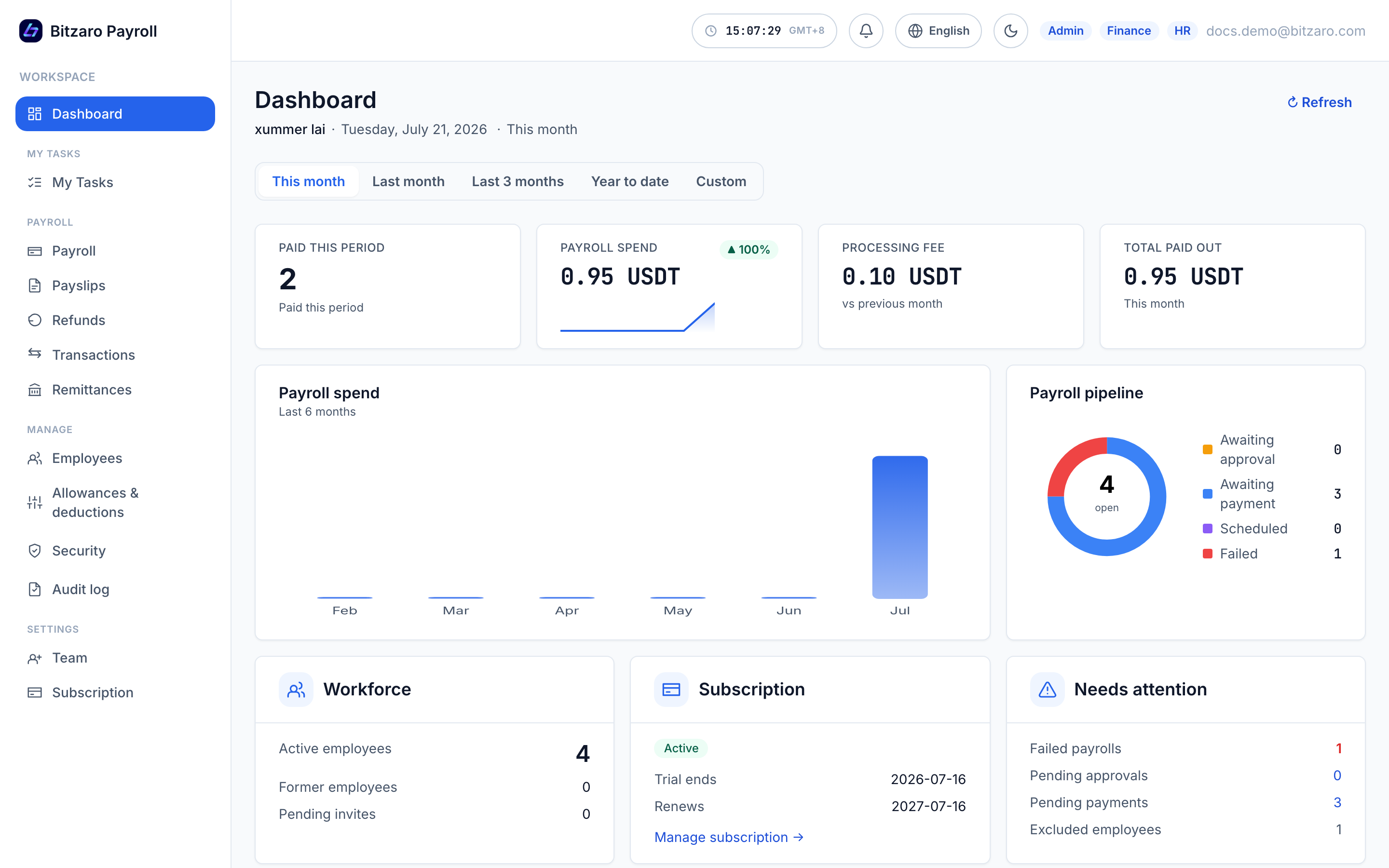
Team & roles
Invite teammates by email and give each a role. Everyone can view the roster; only Owner/Admin can invite or deactivate members, and only the Owner can add or remove a Director. The page includes an animated “what can each role do” guide.
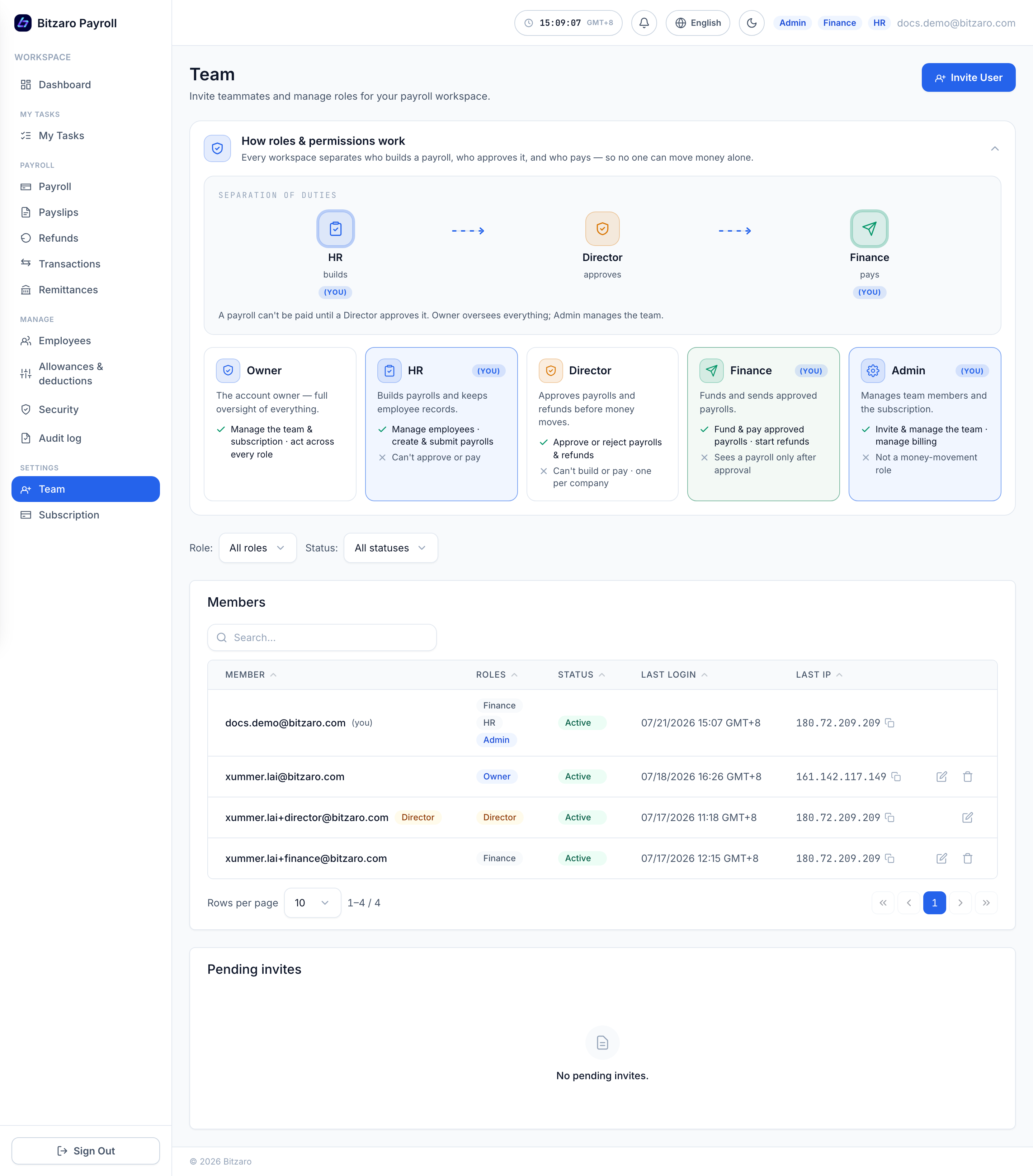
| Role | Can | Cannot |
|---|---|---|
| Owner | Everything operational: create & edit payrolls, pay, refunds, employees, billing & company profile | Approve payrolls or refunds (Director only — four-eyes) |
| Admin | Team, employees, payroll prep, records | Approve payrolls, pay |
| HR | Employees, salaries, payroll prep, payslips | Approve, pay |
| Director | Approve / reject payrolls & refunds | Edit payrolls, pay |
| Finance | Lock & pay, funding, refunds, reports | Create or edit payrolls, amounts, recipients or salaries |
Add employees
Three ways to add people — pick what fits the moment:
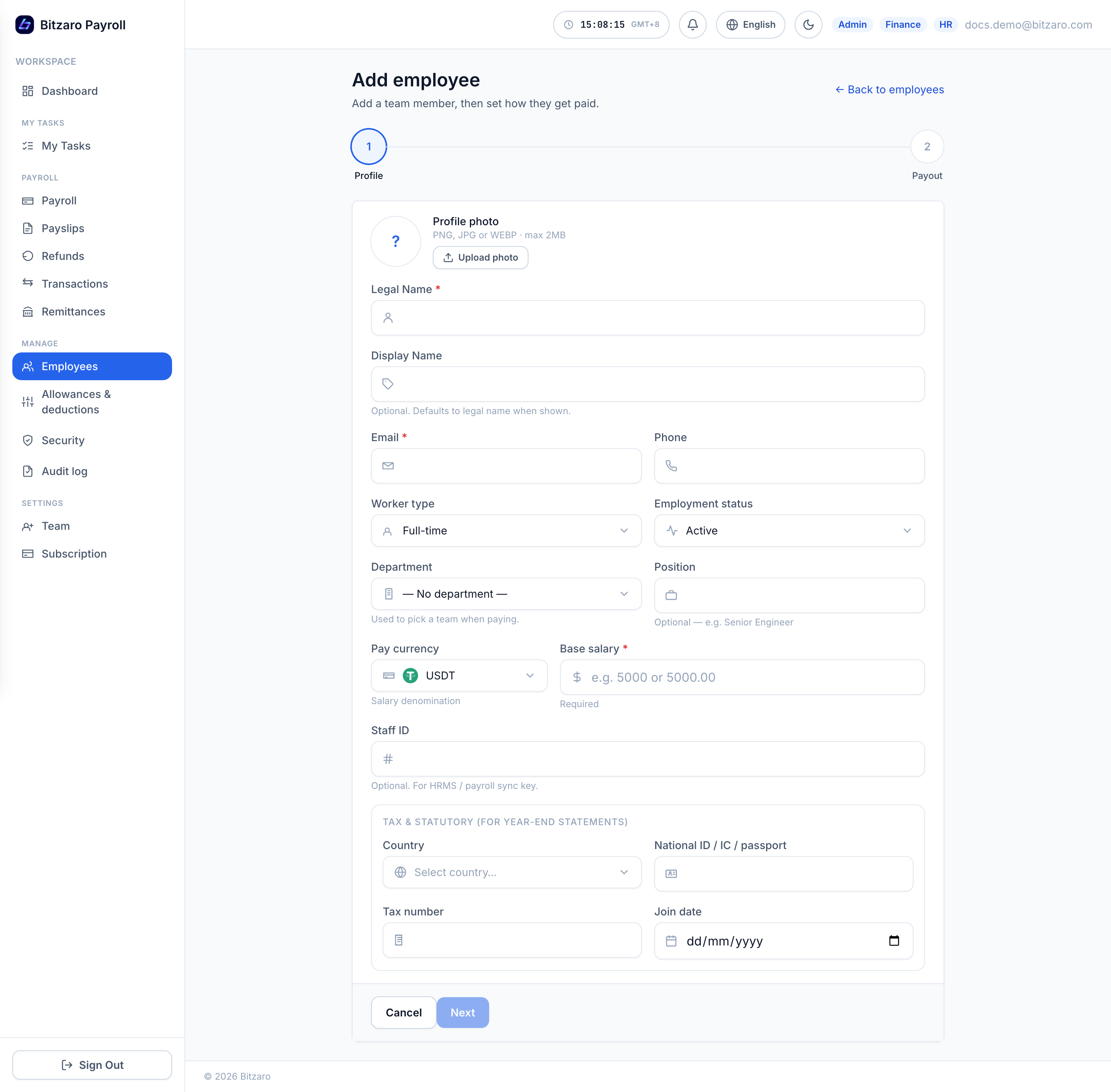
- The guided wizard (recommended)Step through profile → pay → wallet. Includes legal name, email, phone, worker type, department, position, base salary in the employee’s pay currency (USDT or local fiat like MYR/IDR), and the identity block — country (searchable, with flags), national ID, tax number, join date.
/employees/new
 Screenshot pending — run capture.mjs
The add-employee wizard with the tax & statutory identity block. - Inline while building a payrollMid-payroll and someone’s missing? Add employee opens the same form in a dialog without losing your draft.
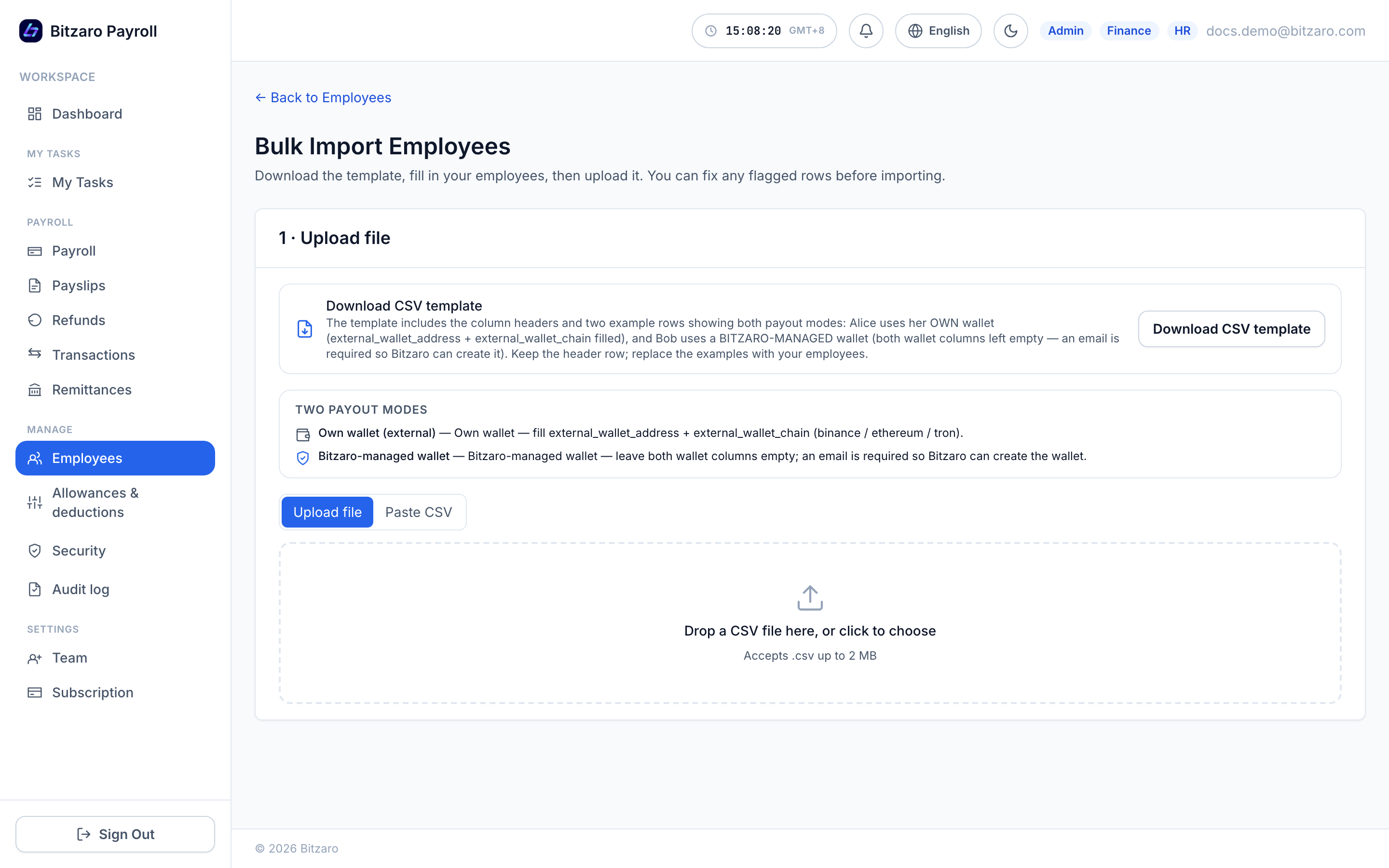
- Bulk importUpload a CSV to create many employees at once; the importer validates each row and reports exactly what needs fixing. The template covers the full profile — identity (country, national ID, tax number, join date), employment, base salary with its pay currency (USDT or local), and an optional own-wallet address + network.
/employees/import
 Screenshot pending — run capture.mjs
CSV import with per-row validation.
The employee profile
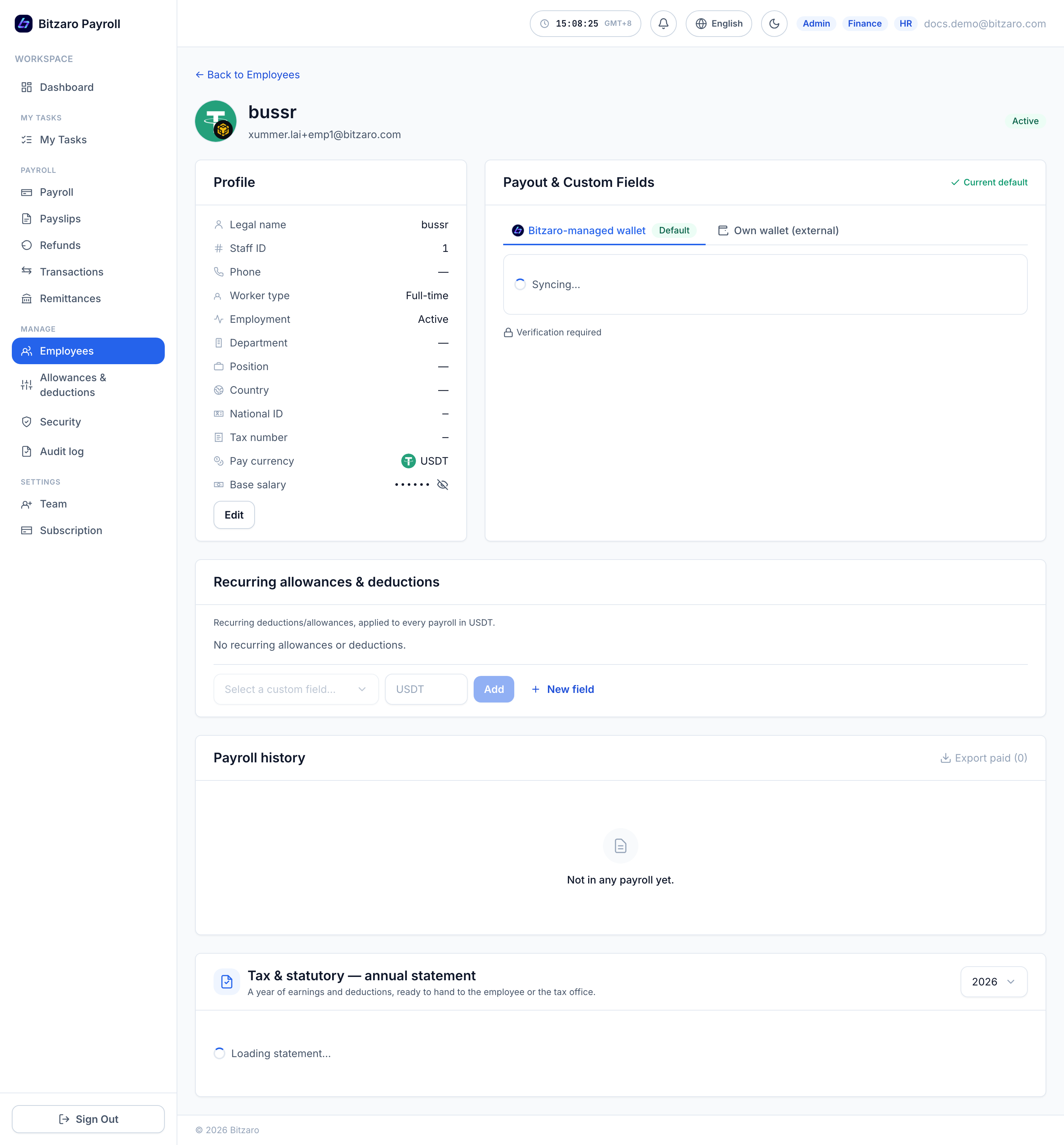
Each profile shows identity (country with flag, national ID, tax number), employment, pay currency, base salary (masked by default), payout wallet status, recurring items and full payroll history.
Manage the list in bulk
The employee list has a checkbox on every row. Select any number of people (or use Select all) and a bulk bar appears with one-click actions: set employment status to Active, Inactive or Terminated, or Archive the records. Filter the list by department or by employment status, and use Show archived to switch into the archived view — archived employees are hidden from payroll selection but keep all their payslips, and can be restored from there at any time. Terminating or archiving always asks for confirmation first. These states are enforced end-to-end: an employee who is archived or no longer active is blocked at payroll submit and again at Director approve, even if they were added to a draft earlier.
Payout wallets
| Option | How it works | Best for |
|---|---|---|
| Bitzaro wallet (managed) | We create and manage a wallet for the employee automatically — addresses on TRON, BNB Smart Chain and Ethereum appear on the profile, and the employee views funds in the Bitzaro Wallet app: iOS — App Store · Android — Google Play. The payslip email carries the same download badges. | Employees new to crypto |
| Their own wallet (external) | Paste the employee’s address and pick the network (TRC-20 / BEP-20 / ERC-20). One network is enough — many employees only hold a TRON address, and that alone can be the payout default. Payrolls run on a network the employee hasn’t saved simply won’t include them (the draft flags it when you pick recipients). The full address — never truncated — is shown with its chain icon everywhere it appears. | Employees who self-custody |
Allowances & deductions
Allowance and deduction fields are labels you name yourself — "Transport", "Housing", "Advance repayment", anything. Define one once as a fixed amount or a percentage of base salary, assign it to employees, and every future payroll picks it up automatically. Nothing is ever calculated for you: you set every amount, and the platform only does the arithmetic you asked for.
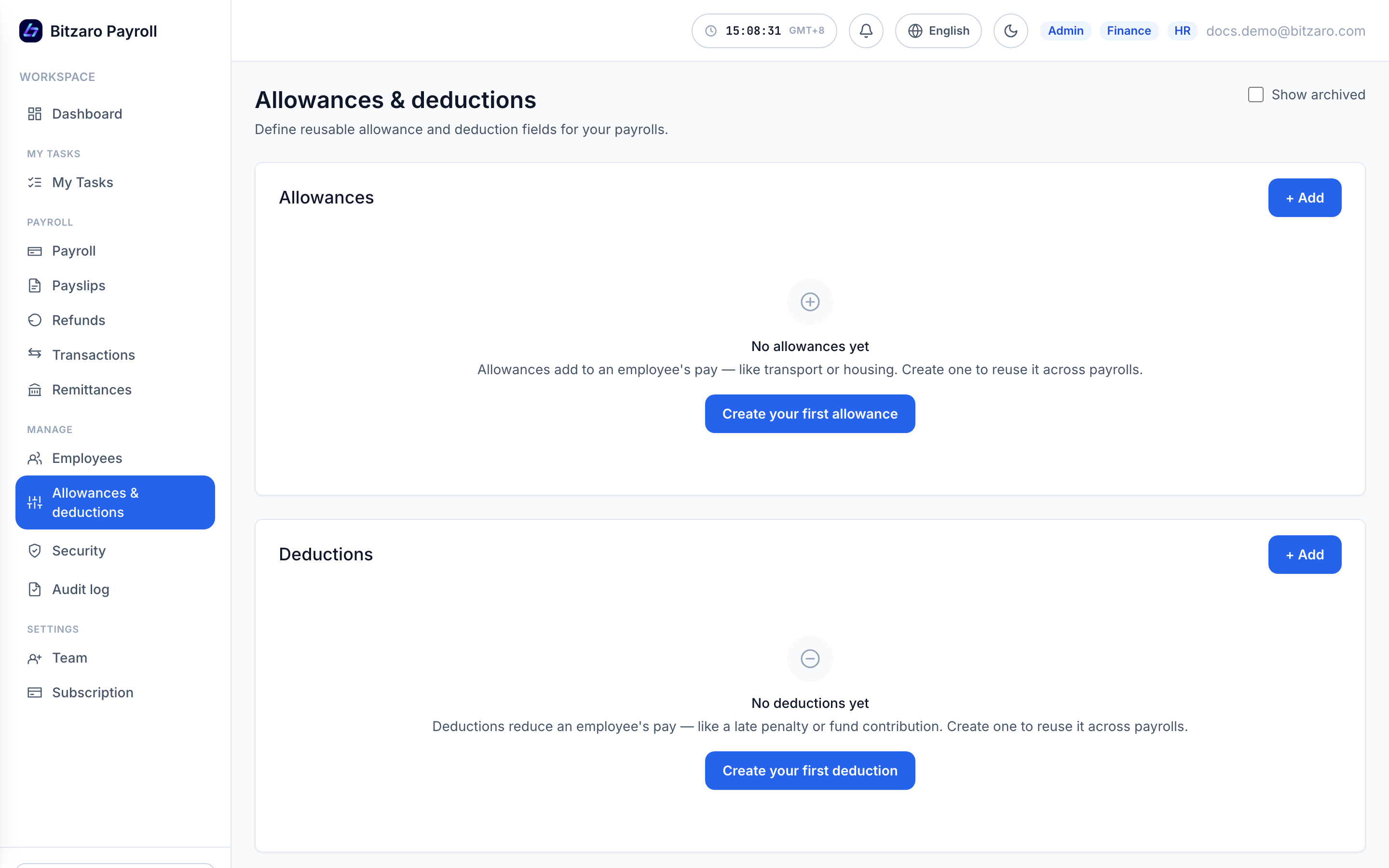
One-off adjustments (a bonus this month, a correction) are added per-line while reviewing a payroll draft — no standing item needed. The optional category on a field only groups it on year-end statements; it never changes an amount — set it from the Category column on the list (click it) or inside the Edit dialog.
Run payroll, end to end
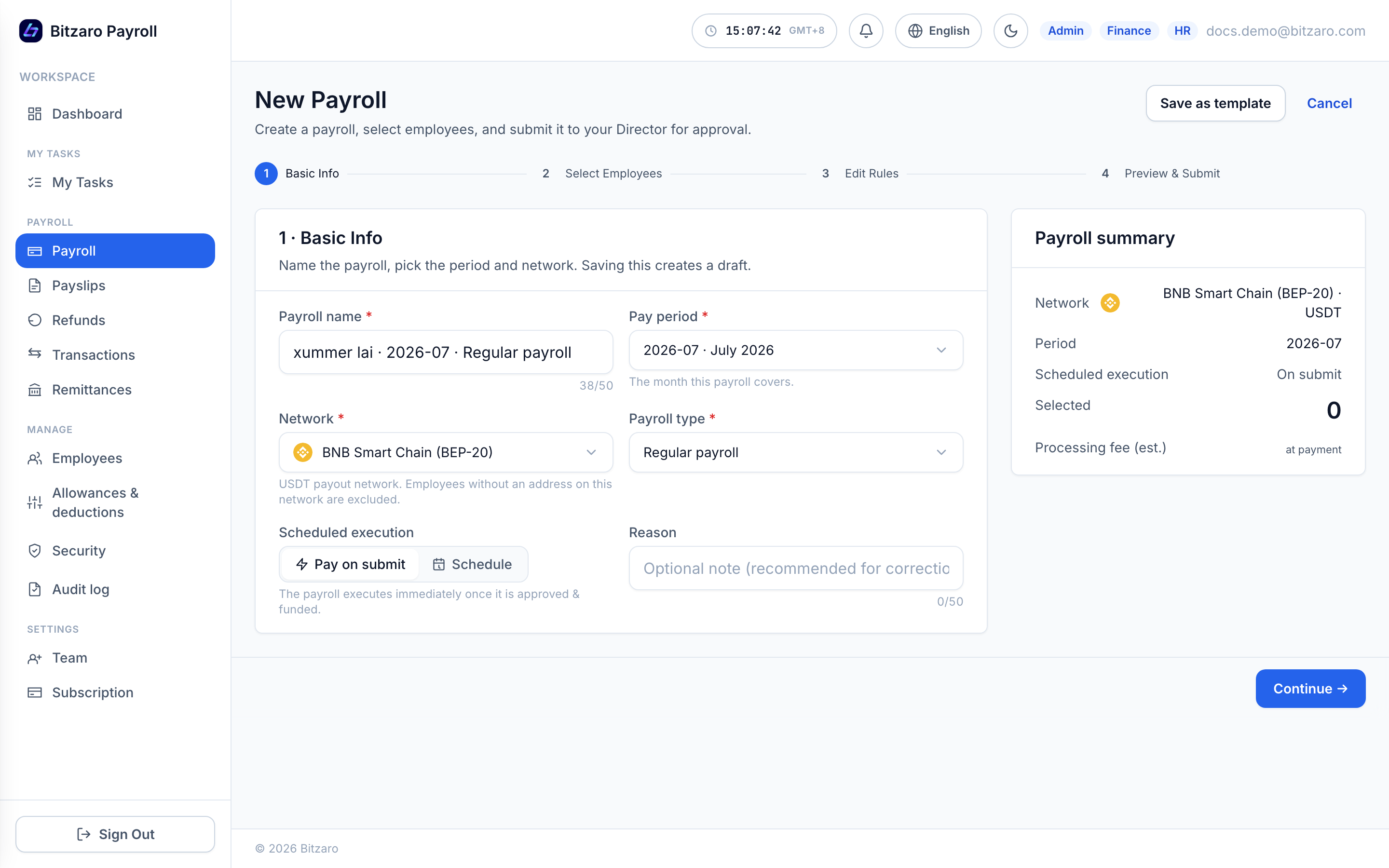
- Create the draftPick the pay period, network (TRON / BNB / Ethereum) and recipients. Each employee’s base salary and recurring items are snapshotted into the draft — if their profile changes later, the draft shows an Employee details changed card with a one-click refresh.
/batches/new
 Screenshot pending — run capture.mjs
Create a payroll: period, network, recipients. - Review every lineAdjust amounts, add one-off items, or add a missing employee inline. Every recipient is labeled with where the money goes — Bitzaro wallet or Own wallet — on the review step and on the approval screen. Fiat salaries show the indicative USDT at today’s rate — the binding rate locks later, at pay time.
- Submit for approval HR Submitting moves the payroll to your Director with an optional note. The Director gets an email with the totals and a review link.
- Director approves Director The Director sees recipients, amounts, fee and any profile changes — then approves or rejects with a reason. Approval freezes the payroll: from this moment the amounts and recipients cannot be changed by anyone, including Finance. Rejection returns it to draft for fixes.
- Review & lock (Click Pay) Finance Finance confirms the already-frozen payroll. This locks the FX rates and the processing fee, and issues the exact USDT deposit amount — the quote can no longer drift. Finance's only choices are to fund it, or cancel it.
- Fund itSend the exact USDT total to the deposit address shown (see Fund with USDT). You can also schedule the payout date in advance — it will pay automatically once funded and due.
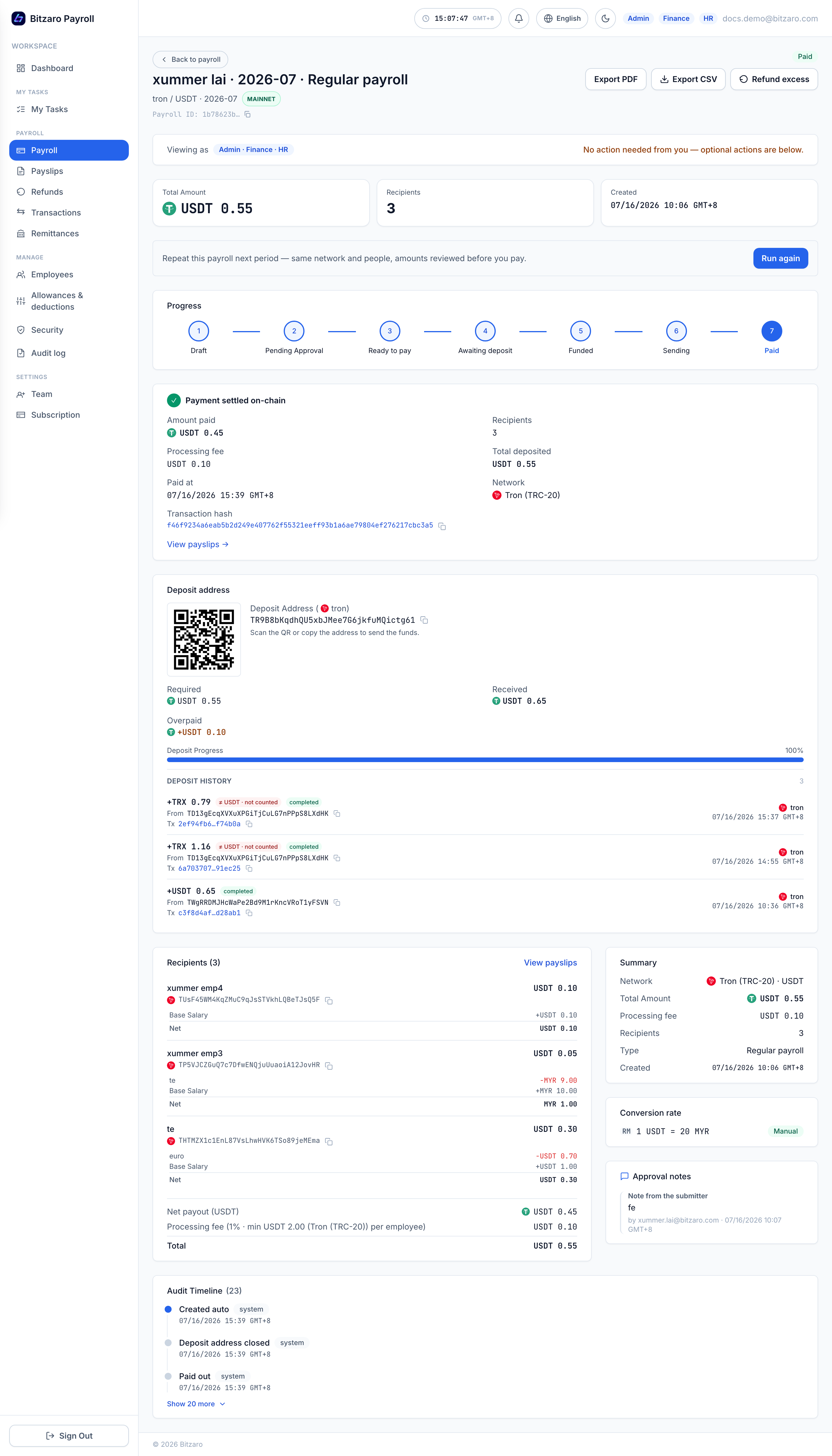
- It pays itselfOnce the deposit is confirmed, payouts execute on-chain automatically. Every recipient gets USDT to their wallet, payslips generate, and each employee is emailed their payslip — no further clicks.
/batches/…
 Screenshot pending — run capture.mjs
A paid payroll: state timeline, per-line settlement, transaction hash.
Your team is notified at every state change — submitted, approved, scheduled, paid, cancelled, refunded — by branded email with the payroll’s facts and a deep link.
Fund with USDT (receiving the deposit)
- Copy the deposit addressAfter Click Pay, the payroll shows its unique deposit address with the chain icon and the exact USDT total (net payouts + processing fee).
- Send from your exchange or walletWithdraw USDT on the same network as the payroll (TRC-20 / BEP-20 / ERC-20).
- Watch it confirmThe payroll flips to Funded automatically when the deposit lands — then pays out (immediately, or on your scheduled date).
Fees & pricing
Bitzaro Payroll charges one processing fee per payroll — nothing per payslip, per employee record, or per download. The exact fee for your account is always shown before you commit:
- See it before you payThe Review & lock quote itemises net payouts + processing fee = the exact USDT deposit. Locking freezes both the FX rates and the fee — the number can no longer move.
- Track it afterwardsThe dashboard shows a “Processing fee” KPI for the period; each payroll’s detail page carries its locked fee; and the Reports detailed export lists the service-fee line per run for reconciliation.
| Charge | How it works |
|---|---|
| Processing fee | A percentage of the payroll total per your agreement (with a minimum and maximum cap). Network minimums apply per employee — defaults: TRON 2 USDT, Ethereum 2 USDT, BNB Smart Chain 1 USDT per recipient — so very small payrolls are priced by headcount instead. |
| Subscription | A flat platform subscription after the free trial. Subscribing also unlocks a lower processing-fee rate than the trial rate. |
| Network gas | Included — you never top up gas or manage native coins; the deposit amount is all you send. |
Payslips
Every paid employee automatically receives an email with two PDF documents:
| Document | What it is |
|---|---|
| Payslip (USD) | The official statement for banks, landlords and authorities — every figure in USD (USDT treated 1:1, fiat converted at the locked rate with the original amount beside it). No crypto terminology anywhere. |
| Payment receipt | The on-chain settlement record — locked rate, USDT paid, network, full wallet address and the transaction hash (tap to verify on the block explorer). |
- Find any payslip fastSearch by employee, payslip reference (
PS-2026-07-…— the same reference printed on the PDF) or transaction hash; filter by month or employee./payslips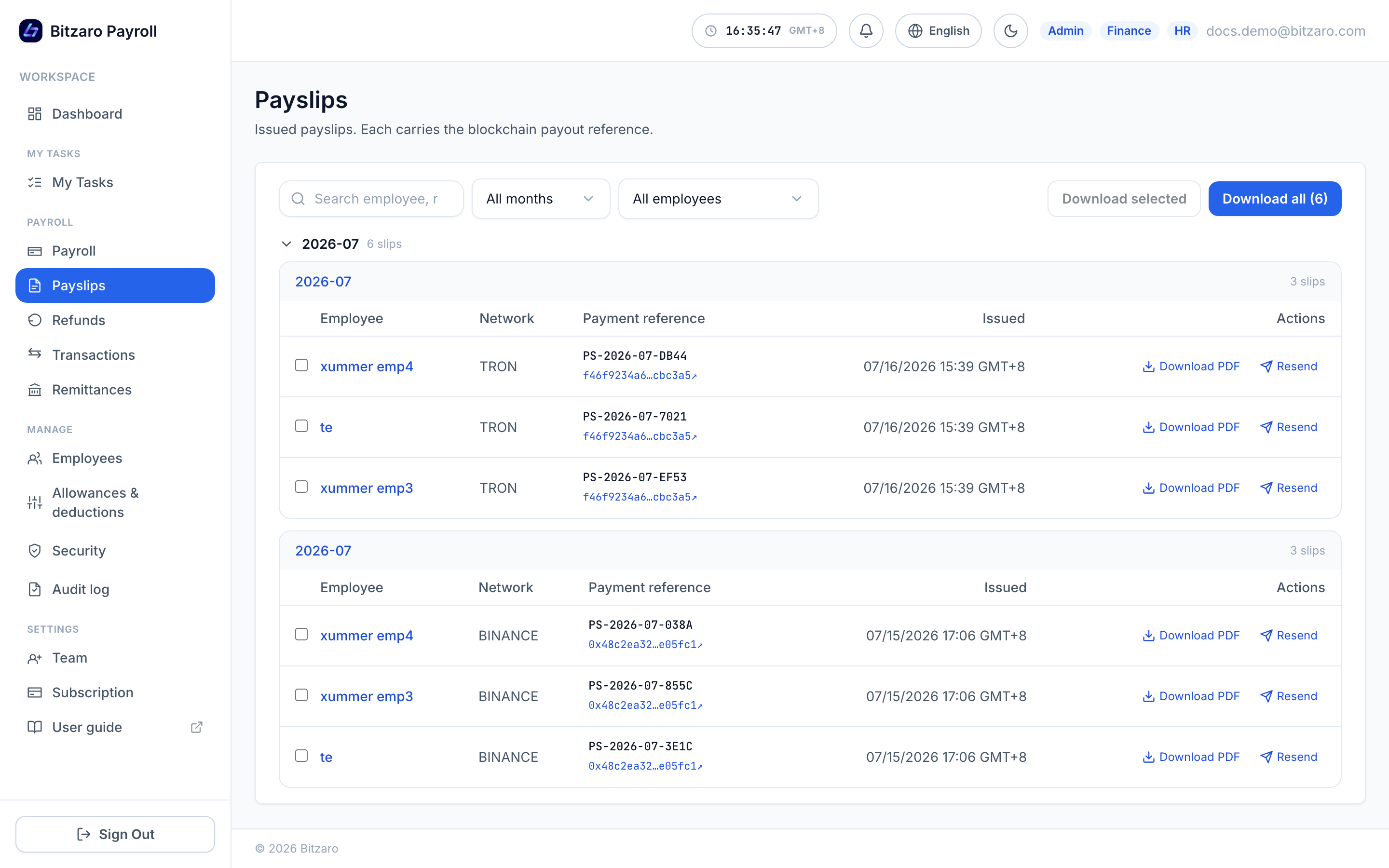 Screenshot pending — run capture.mjs
Payslips grouped by month and payroll run, with references and explorer links. - Open the detailSee the rendered payslip exactly as the employee does, delivery history, and download the PDF.
/payslips/…
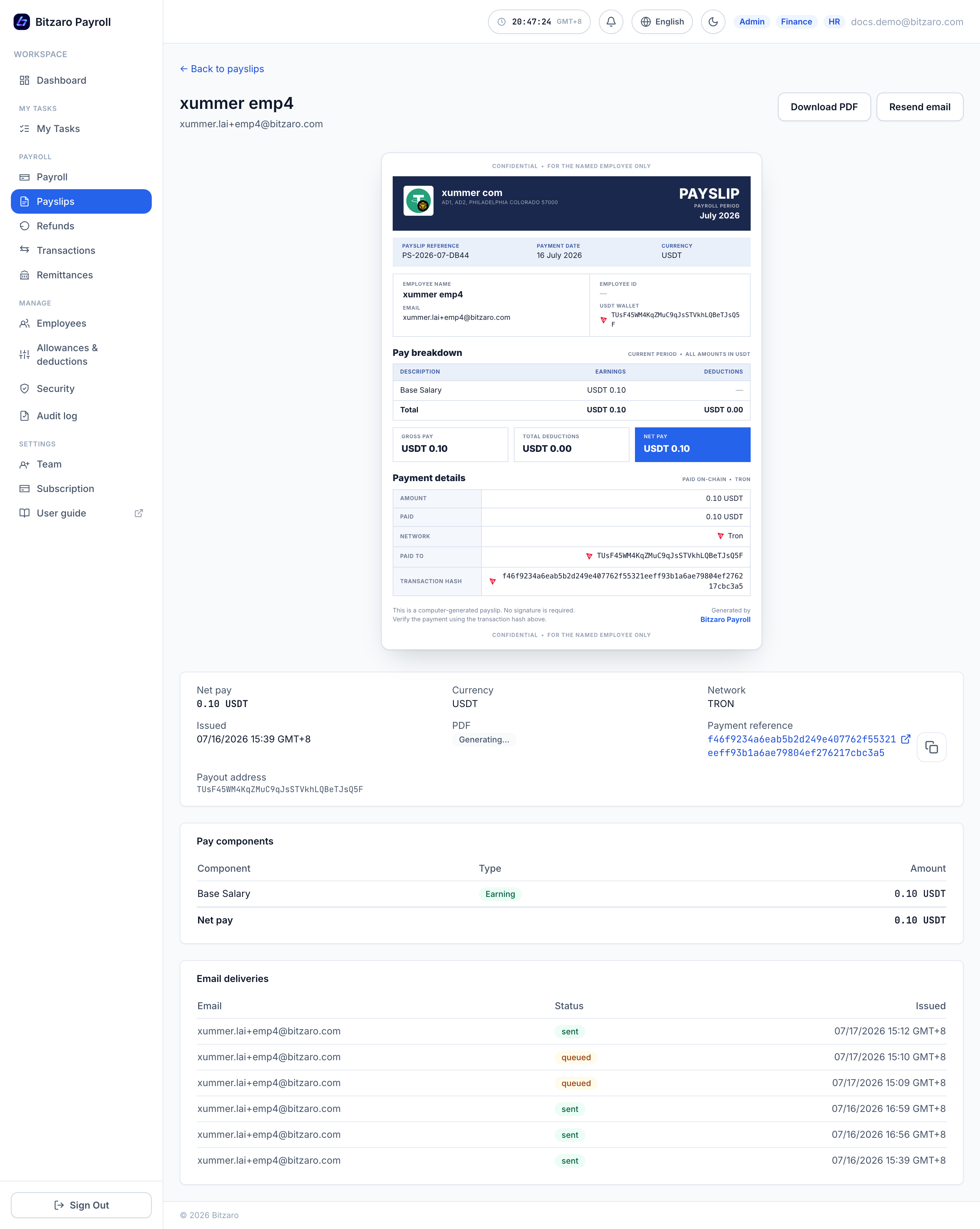 Screenshot pending — run capture.mjs
Payslip preview with the document meta strip and payment details. - Resend or bulk downloadResend re-emails both PDFs (rate-limited for safety). Select many payslips — or a whole month — for a ZIP download.
Money records
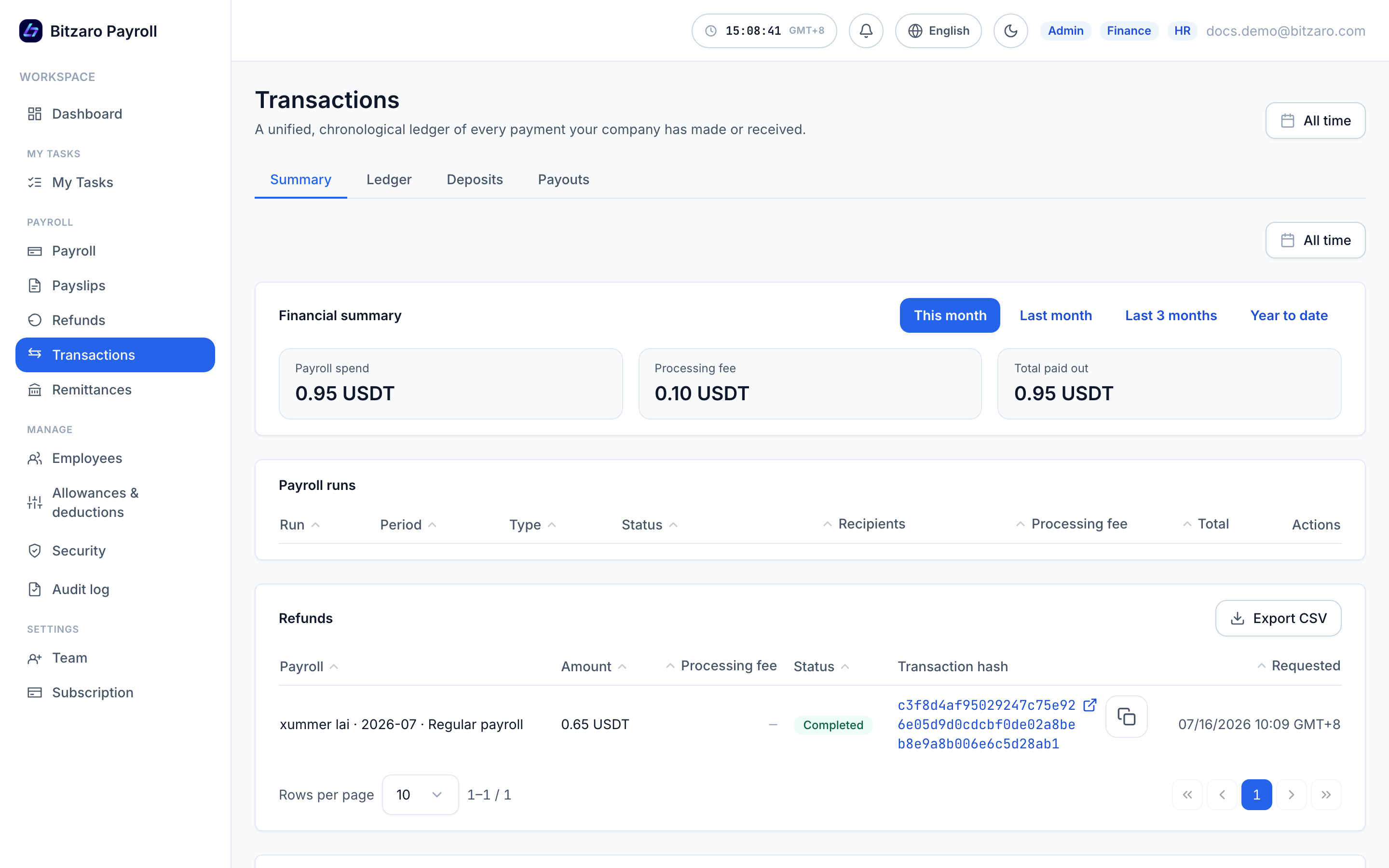
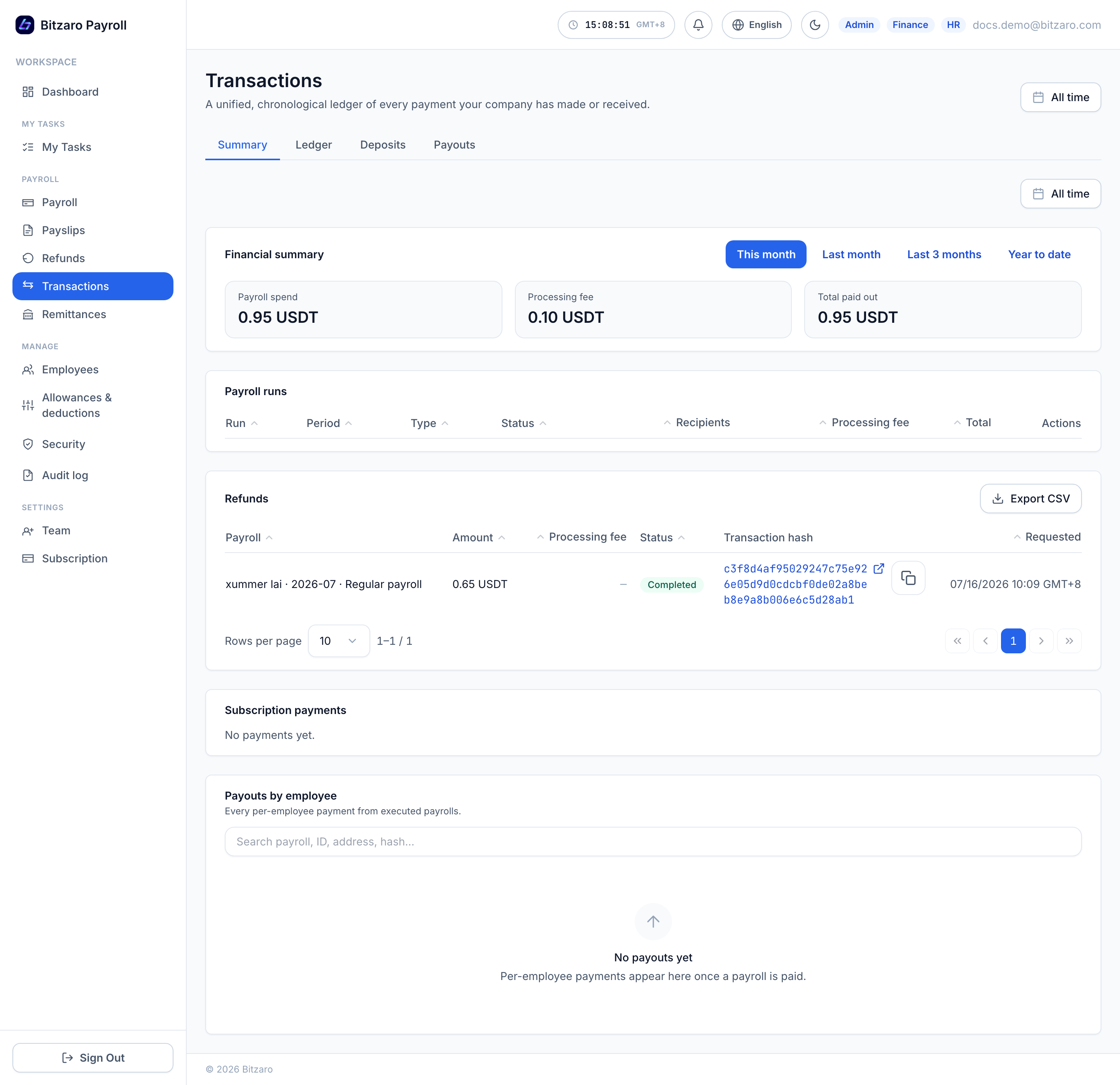
Transactions
The full ledger — deposits in, payouts out — each with chain, address and transaction hash linking to the block explorer.
Remittances
A formal remittance register for finance filing — every outbound payment with its purpose and counterpart, exportable.
Reports
Download payroll-run summaries, a per-employee detailed CSV/XLS (each line carries its payslip reference), refunds, and subscription payments — built for reconciliation and accountants.
Refunds & retries
Retry a failed payout
If a payout line fails (network congestion, recipient issue), the payroll shows Failed with the reason. Retry re-attempts safely — funds can never double-send: the platform re-checks state atomically before any transfer.
Refund an unused deposit
- Initiate Finance From the payroll, request a refund of the remaining balance and confirm the destination address with a passkey.
- Director approves Director The Director sees the amount and the full destination address before approving — the same four-eyes rule as payroll.
- Funds return on-chainThe refund disburses immediately on approval and lands in the refunds ledger with its transaction hash.
/refunds
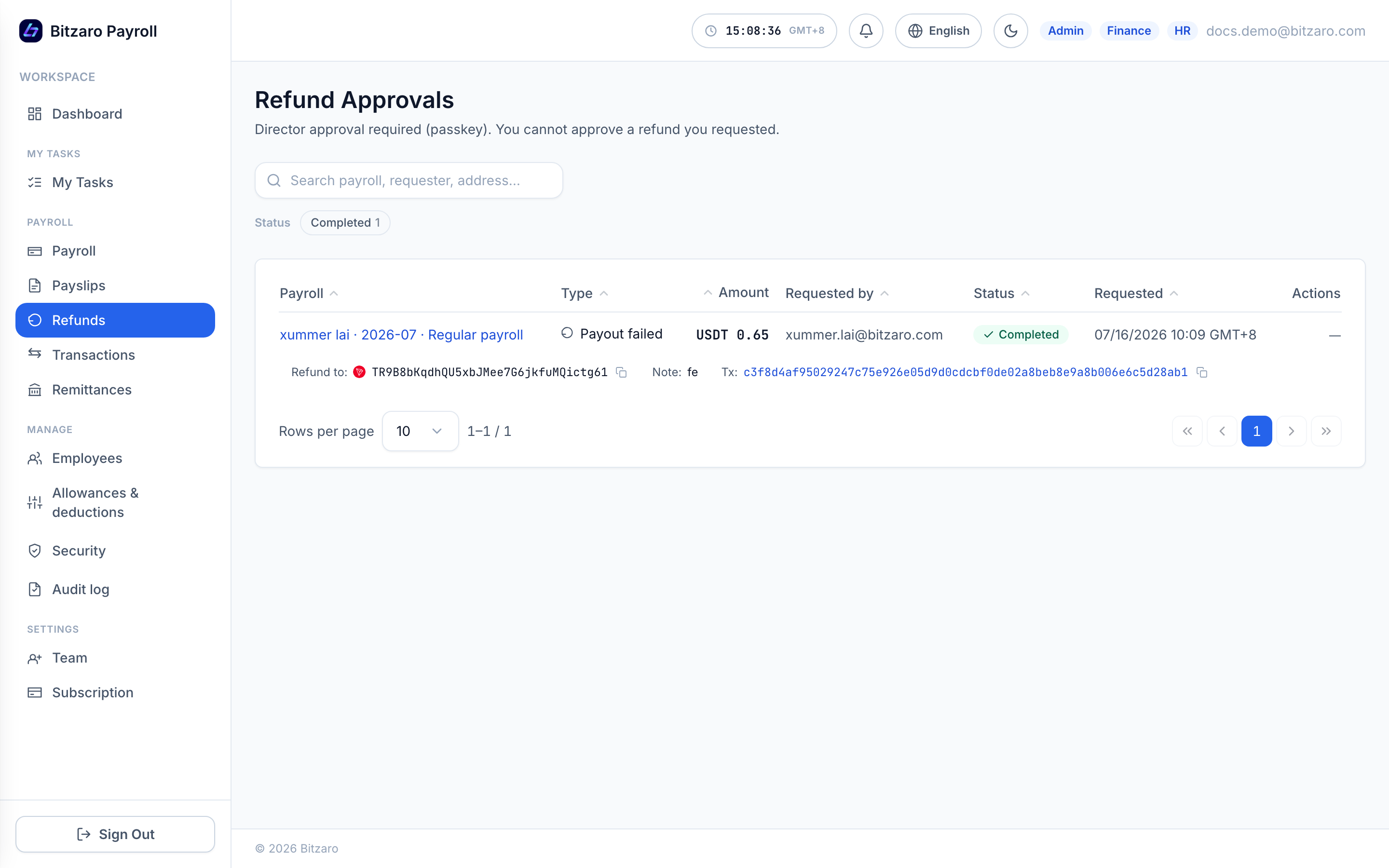 Screenshot pending — run capture.mjs
Refund requests with approval state and settlement.
Security & audit
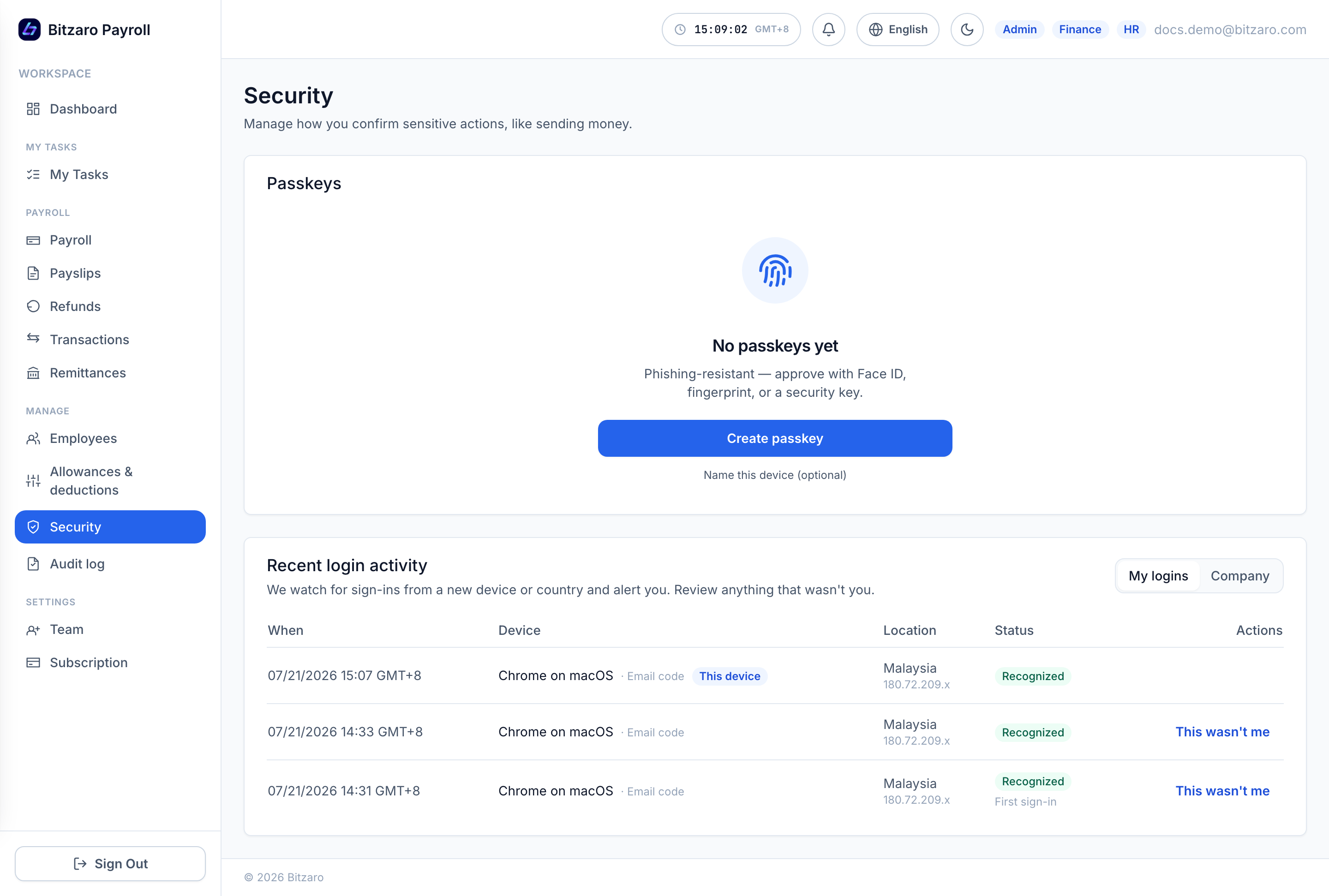
- Add a passkeyPasskeys (Face ID / Touch ID / security key) confirm sensitive actions — paying, refunds, viewing salaries, changing payout addresses. A password fallback exists, but passkeys are the recommended default.
/settings/security
 Screenshot pending — run capture.mjs
Passkeys and recent login activity with anomaly detection. - Watch login activityEvery sign-in is listed with device, location and risk status. New device or new country? You’re alerted. One click on This wasn’t me revokes all sessions and locks the account down.
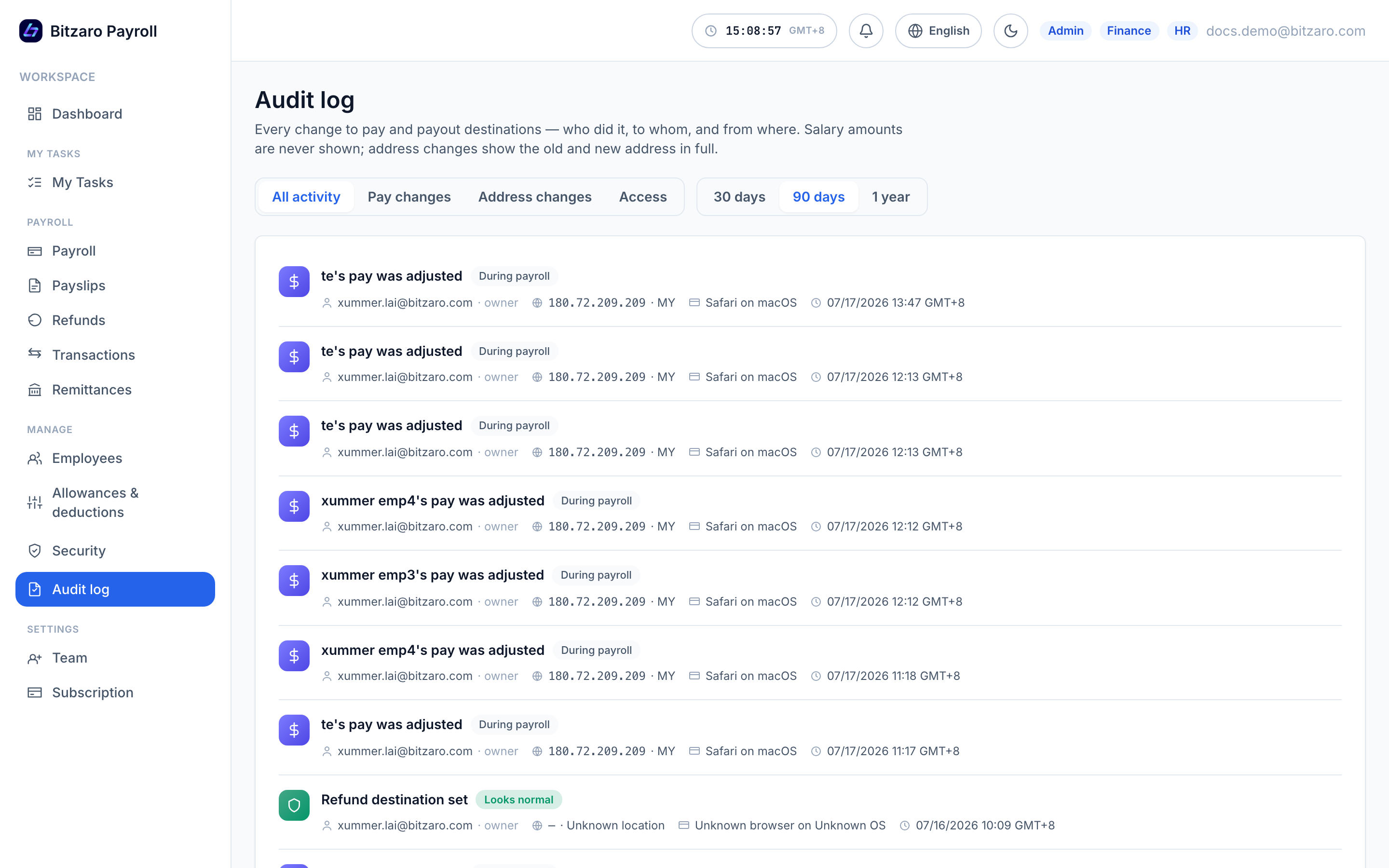
- Everything is in the audit logPayroll actions, approvals, payout-address changes, salary views — who, when, from where. Filter by category and export for compliance.
/audit-log
 Screenshot pending — run capture.mjs
The immutable audit trail.
Settings
Company
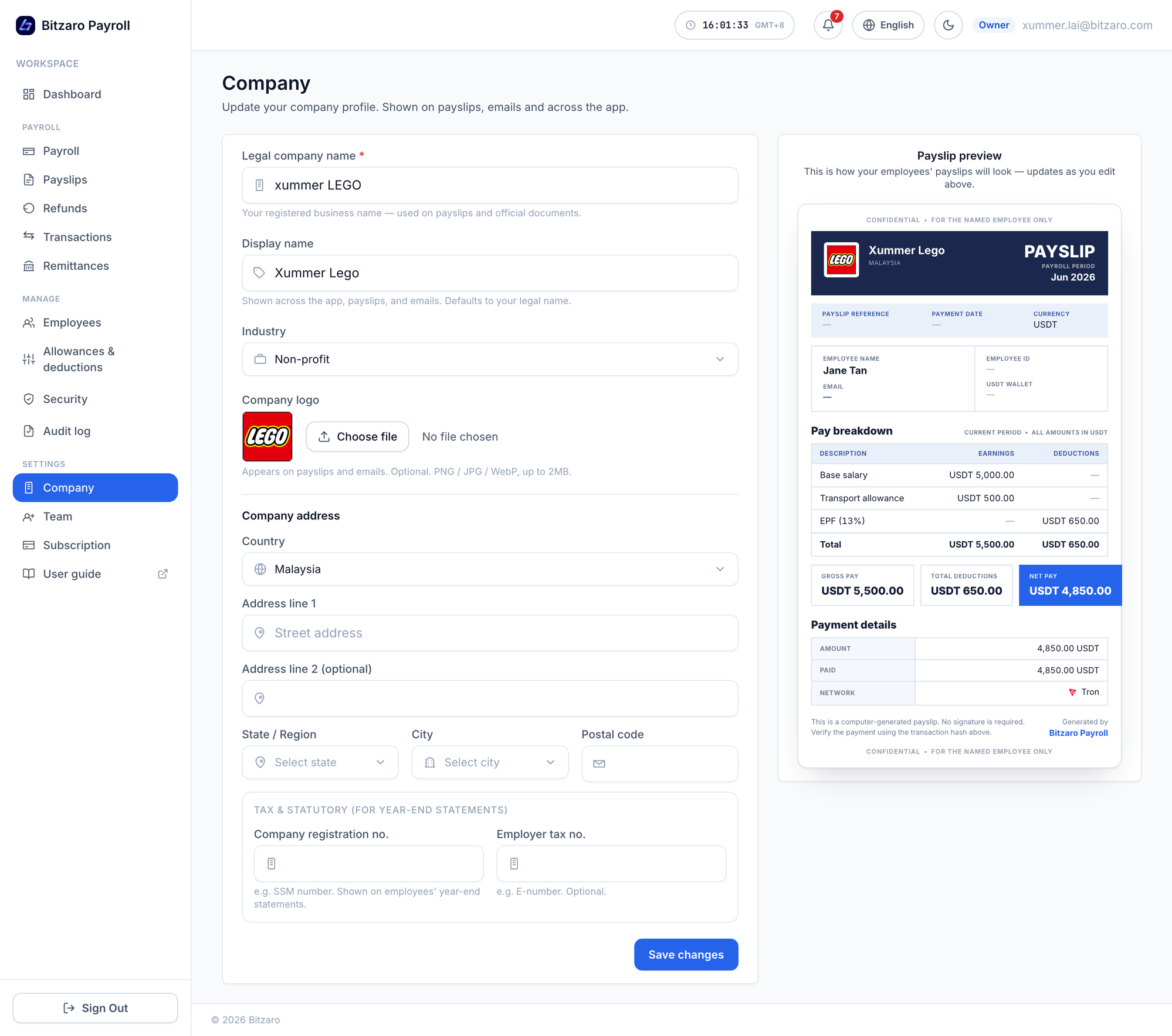
Legal name, display name, registration number, address, industry and logo — with a live payslip preview on the right showing exactly what employees will receive as you type.
Notifications
Choose which email categories you receive (approvals, refunds); security alerts are always on.
Language & theme
English, 简体中文 and Bahasa Indonesia; light and dark themes.
Subscription
Start on a free trial; subscribe to keep running payroll and to unlock a lower processing fee. Trial reminders arrive 3 days and 1 day before expiry.